
User guide
How to run a tournament in ClubScore from start to finish: from creating it to seeing it on the club’s screen and sending the report when it ends. This guide is based on padel, but the other sports work the same except where noted. The last two sections cover competitions between clubs, which is the other kind of competition you can run here.
Where you land and where everything is
When you enter ClubScore you go wherever you were heading. If you weren’t heading anywhere in particular, it depends on your club:
If you use a single sport, you go straight into its panel.
If you use more than one, you land in Club, the club home page: all your tournaments together, ordered by what is most urgent, and the matches being played right now in any sport.
Either way, at the top of every panel you have the “Club” button. That is where everything that belongs to the club rather than to a sport lives: your plan, your team, the club screen, the combined Display, the club sponsors, the club information and help (this guide, the videos and the quick guide). Each sport’s panel holds its tournaments and whatever belongs only to that sport.
Before you start
There is nothing to install or download. You need a computer or tablet to set the tournament up, a phone to enter results on match day, and any screen with a browser if you want the live scoreboard — any Smart TV will do, or a regular TV with a Fire TV Stick or Chromecast. Everything runs inside the browser.
If you do not have an account yet, sign in on the Demo plan and load the sample tournament: you will see the end result before typing a single name, with pairs, schedule, results and the screen working. Feel free to poke at it and break it, that is what it is for.
And if you like how it looks, the sample tournament can become yours without starting over: press “Reset” inside the tournament — it clears groups, matches and bracket and takes it back to setup — and then you only change the name and date in step 1 and replace the entrants in step 2. You keep the courts, the format and the screen colours already in place.
A tournament is built in seven numbered steps and you can move back and forth whenever you like. Nothing gets lost: what you type saves itself, and if you open the panel from another device you find the tournament exactly where you left it. You can start a tournament from the sport’s panel, with “+ New tournament”, or from Club, where you pick the sport first.
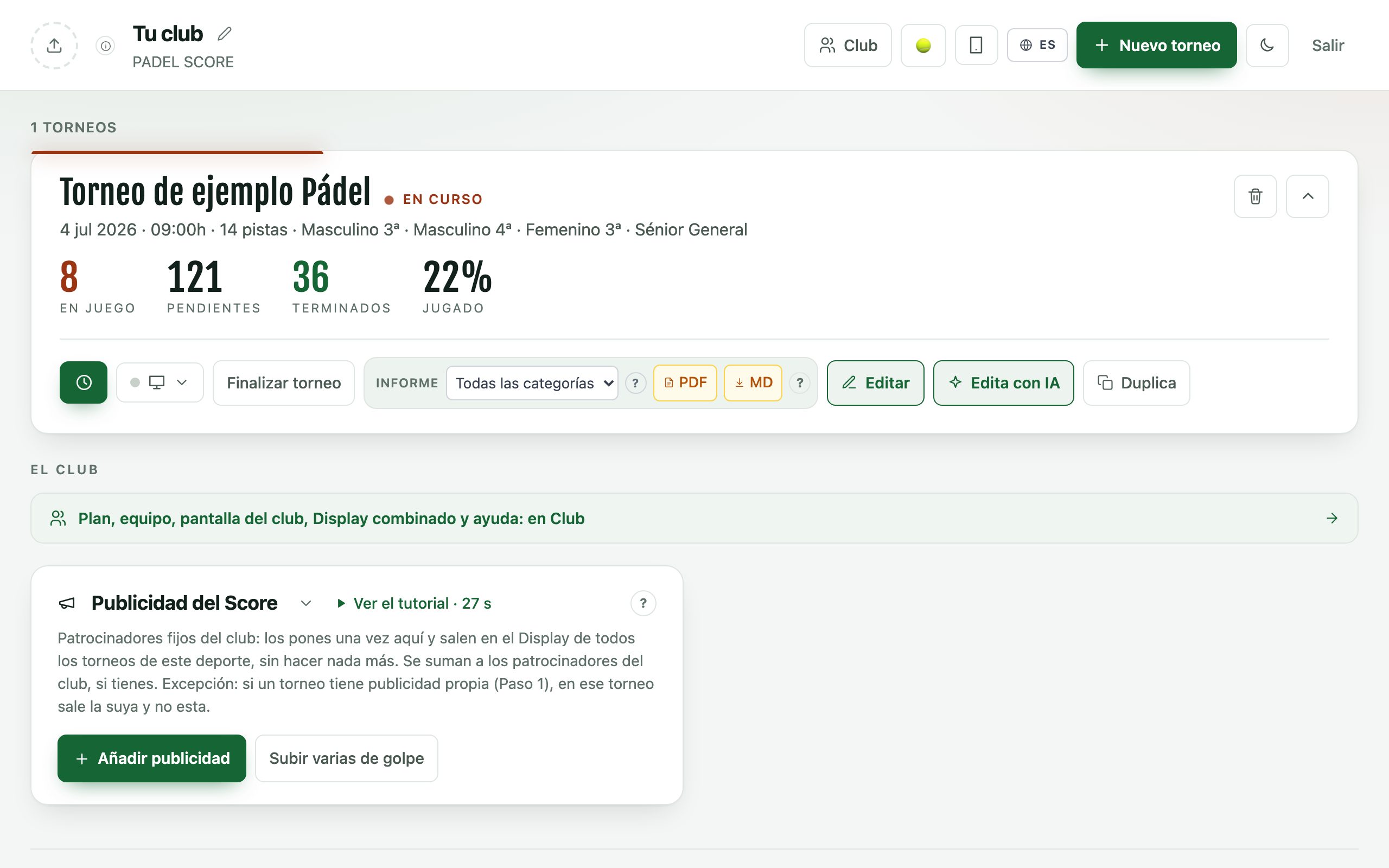
Written once: the club information
In Club, “Club information” keeps what doesn’t change from one tournament to the next: the club’s name and crest, a crest of its own for each sport if you want one (padel always uses the main one), the names of your courts and pitches for each sport, the screen languages and its colour theme.
All of this is inherited by new tournaments in any sport. The ones you already had don’t change, and each tournament can change it just for itself in step 1.
Setting the tournament up
01Info: name, date and courts
If your list is already written down —in WhatsApp, a spreadsheet or an email— you do not need to type it again. Press «Edit with AI», paste it and the form fills itself in. First we show you what we understood and what we did not; nothing is saved until you say yes. You can use your AI, but you do not have to. There is a step-by-step explanation at clubscore.live/en/guia/muntar.
Press “+ New tournament” and fill in the name, date, start time, the courts you have and how long each match lasts. Courts can have their own names — Court 1, Centre, Clay — and that name shows up later in the schedule, on screen and in the link players receive.
This is also where you decide how the screen will look: the colour theme (there is one designed for clay), which languages it shows — you can tick several and it rotates — and how many sponsor images and videos appear between sections. If you have filled in the club information, the new tournament already comes with your languages, your theme and your courts: you only change what is different.
Advertising works on three levels:
The club’s (“Club sponsors”, in Club): it shows in every sport and on the club screen too.
The sport’s Score, in each sport’s panel: you set it once and it appears across all your tournaments in that sport.
This particular tournament’s.
The club’s adds to the Score’s. If a tournament has its own sponsor, that one takes over; a checkbox lets the others show too, interleaved. Advertising is part of the Club plan. A new club sponsor appears on each tournament’s screen the next time you save something in that tournament (a result, a schedule…); on the club screen, straight away.
Club notes are free text shown on screen and in the players’ view: this is where “prize-giving at 8pm” or “the bar closes at 7 today” goes.
In padel you also choose how 40-40 is settled, under “Courts and match format”. Tick nothing and it is advantages as always. Golden point: at 40-40 a single point decides the game. Star point: advantages with a ceiling — at the third deuce (40-40, 4-4 and 5-5) the next point decides. In both cases the receiving pair picks the side. In tennis the same thing is called No-Ad and lives under “Scoring”, with a “?” that explains it; pickleball does not need it, because it has no 40-40.
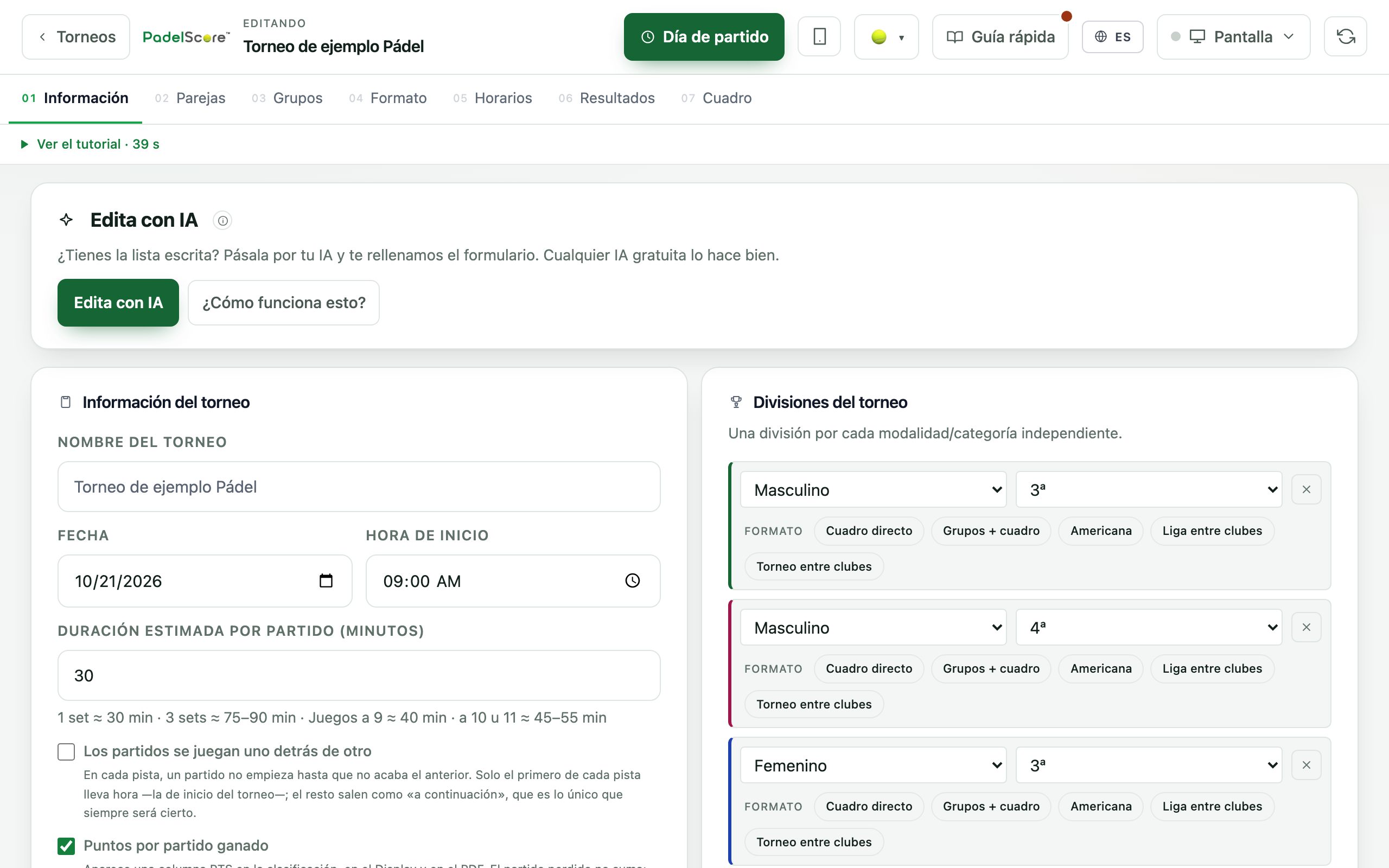
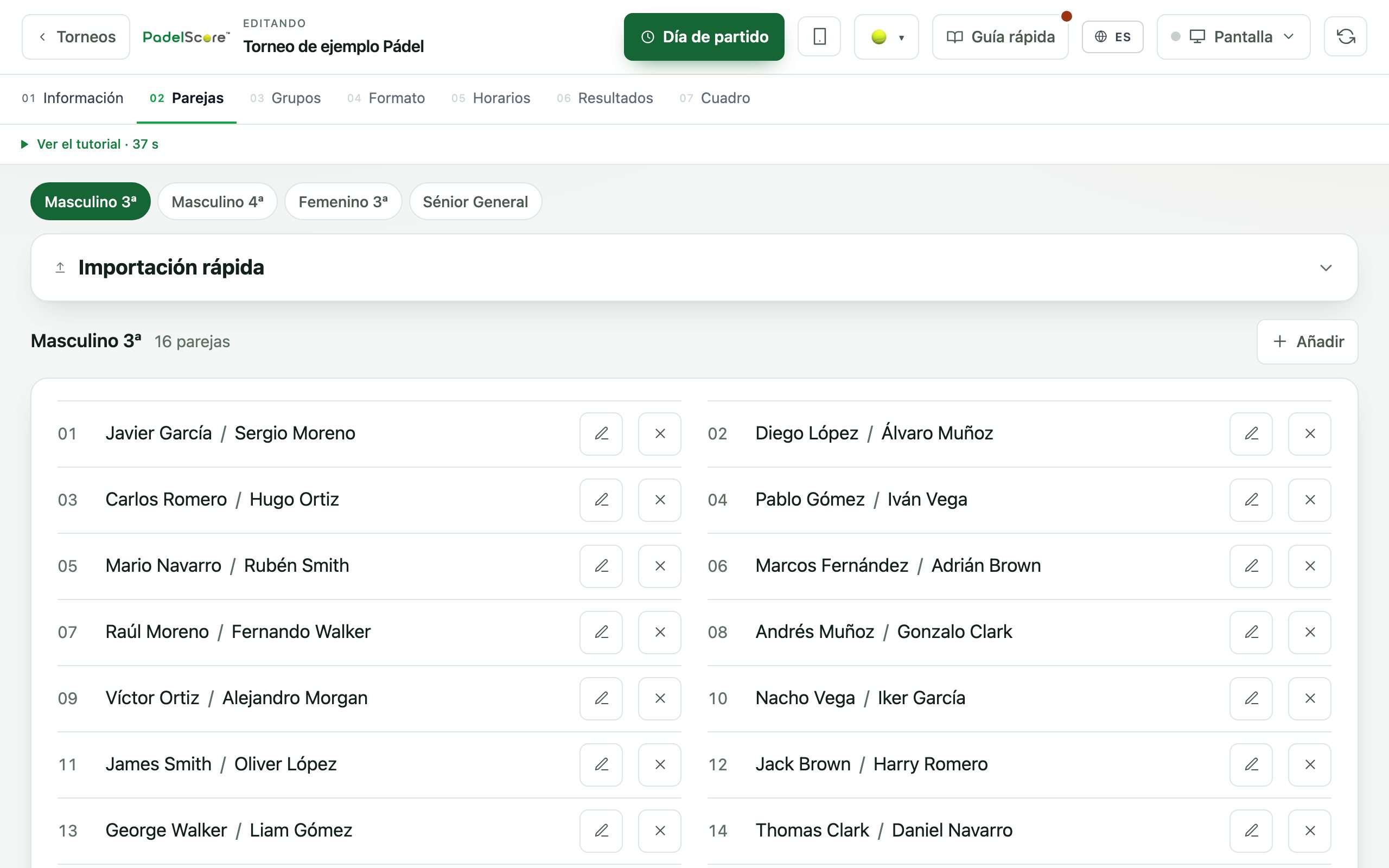
02Pairs: who plays
First you split the tournament into categories — men’s, women’s, mixed, by level or by age — and then you enter who plays in each. Every category has its own format, its own bracket and its own standings, so a tournament with four categories is like four tournaments sharing courts and a timetable.
Entrants can be added one at a time or pasted in as a whole list, exactly as you have it in WhatsApp or a spreadsheet, with the phone number on the same line if you have it.
In padel and pickleball you enter pairs; in tennis, players or pairs depending on singles or doubles; in americanos, individual players who rotate partners. In football and roller hockey, instead of pairs there are teams, with their squad (shirt number, date of birth if you compete by age group) and their crest or logo, which appears on screen next to the name.
And if the category is a competition between clubs there are no pairs here: you add one team per club, with its player list, and the invitation pack appears right underneath, ready to hand out. It is explained at the end of this guide.
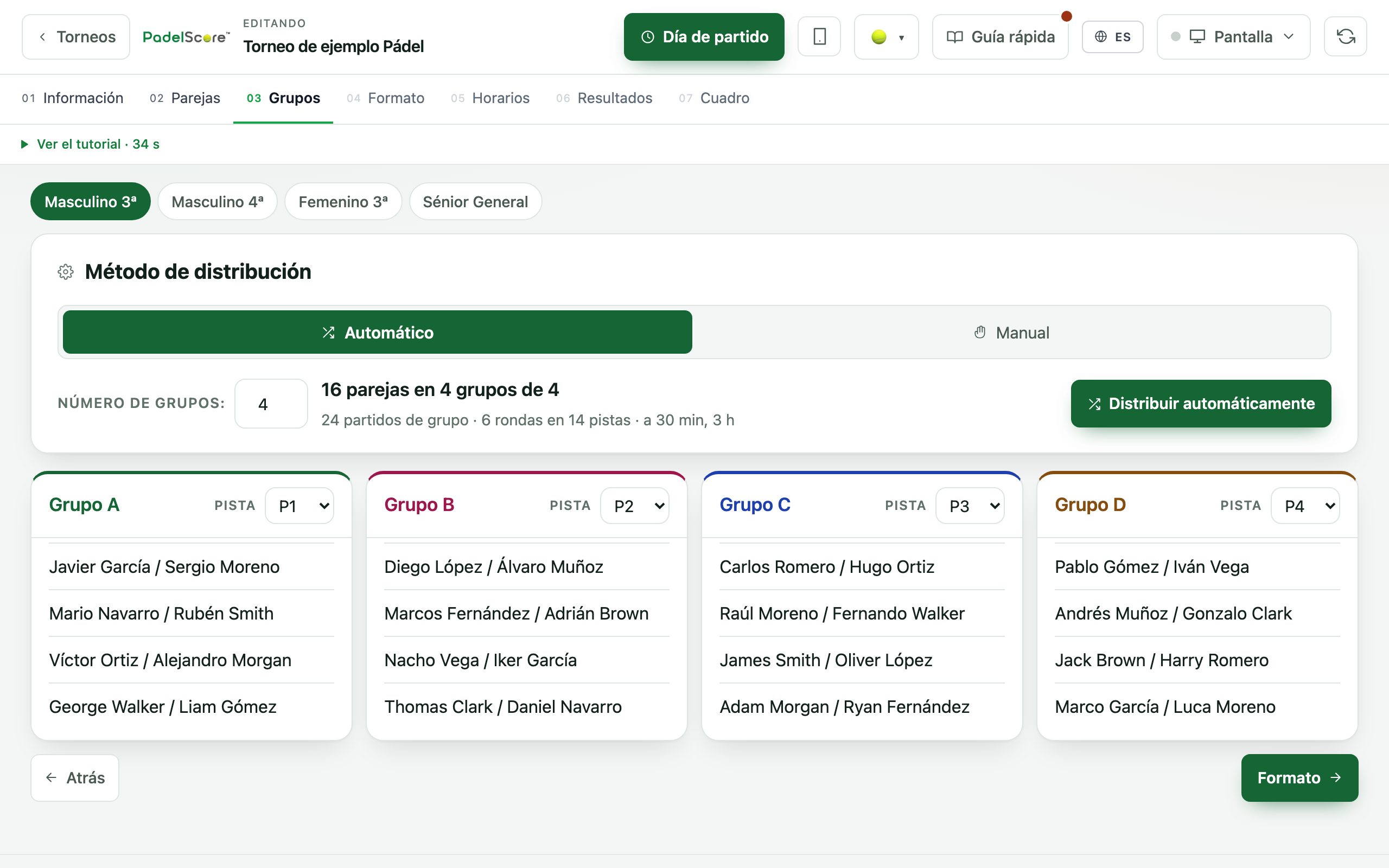
03Groups: the draw
If the format has a group stage, this is where entrants are drawn. The system does it automatically and evenly, and you can drag anyone anywhere afterwards: there are always two pairs from the same club, or two brothers, who would rather not meet in the first match.
How many groups there are and how many qualify from each is decided in the next step; here only who plays whom matters.
If a pair drops out at the last minute, you remove them and the draw is redone. There is no need to start over.
04Format: how the tournament is decided
This is where you choose how it is played. Groups plus a knockout bracket is the usual weekend format: everyone plays several matches in the morning and the best meet in the afternoon. You also have round robin (everyone against everyone), americanos in their various forms — where partners rotate and standings are individual — and a hand-built bracket if your tournament has its own tradition.
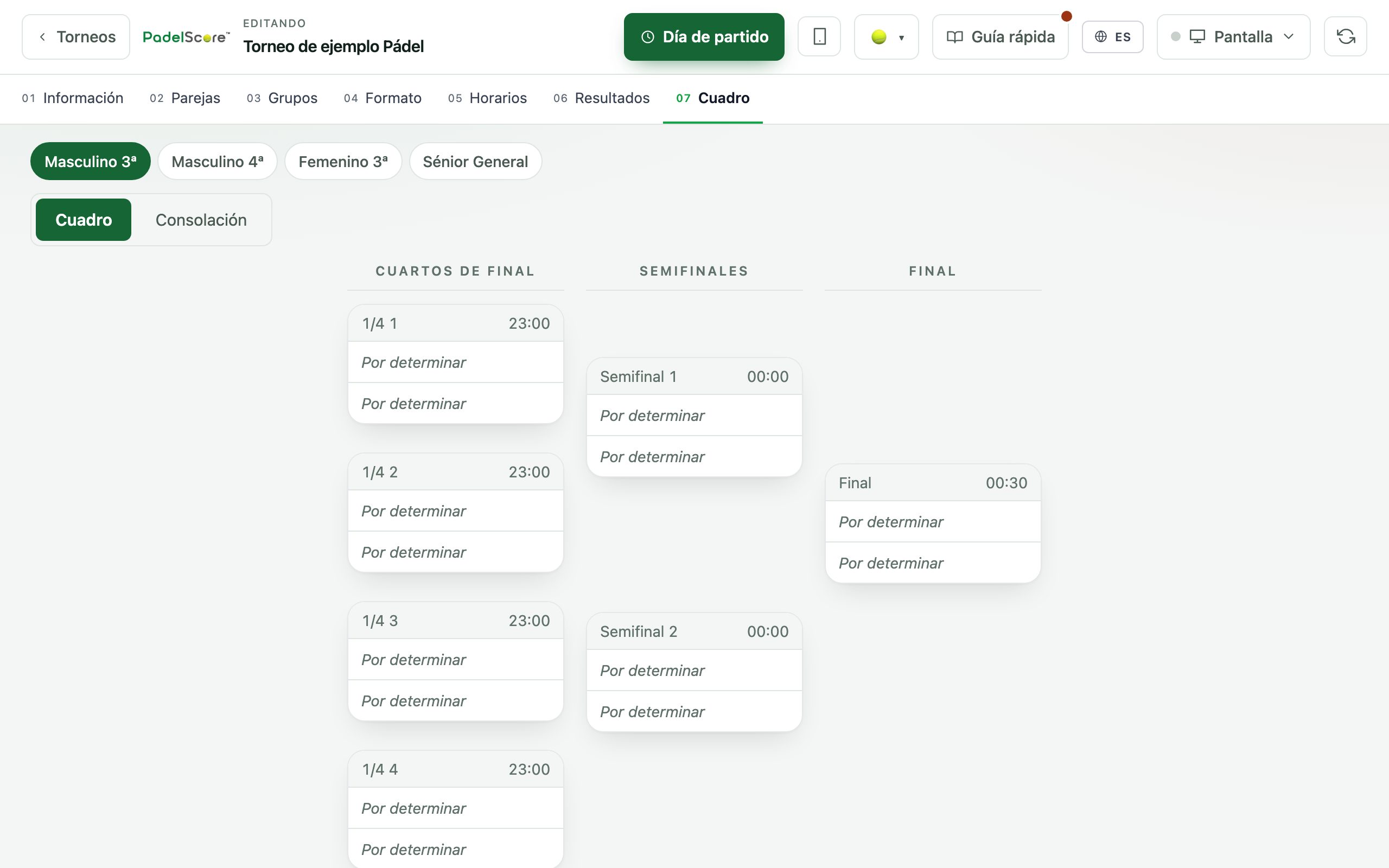
There are ready-made bracket templates for the usual sizes, and you can save your own if you always repeat the same scheme. If you prefer to build it yourself, you can preview it before generating anything.
You can add a consolation bracket so that whoever loses first thing in the morning is not left without matches for the rest of the day. It is one of the most appreciated touches at a social tournament, and one of the hardest to run on paper.
In football and roller hockey this step is different: instead of a bracket you set up the competition — one-day tournament, mini-league or a full season league, in 11-a-side, 7-a-side or futsal in football — and the fixture calendar is generated for you.
05Schedule: time and court for every match
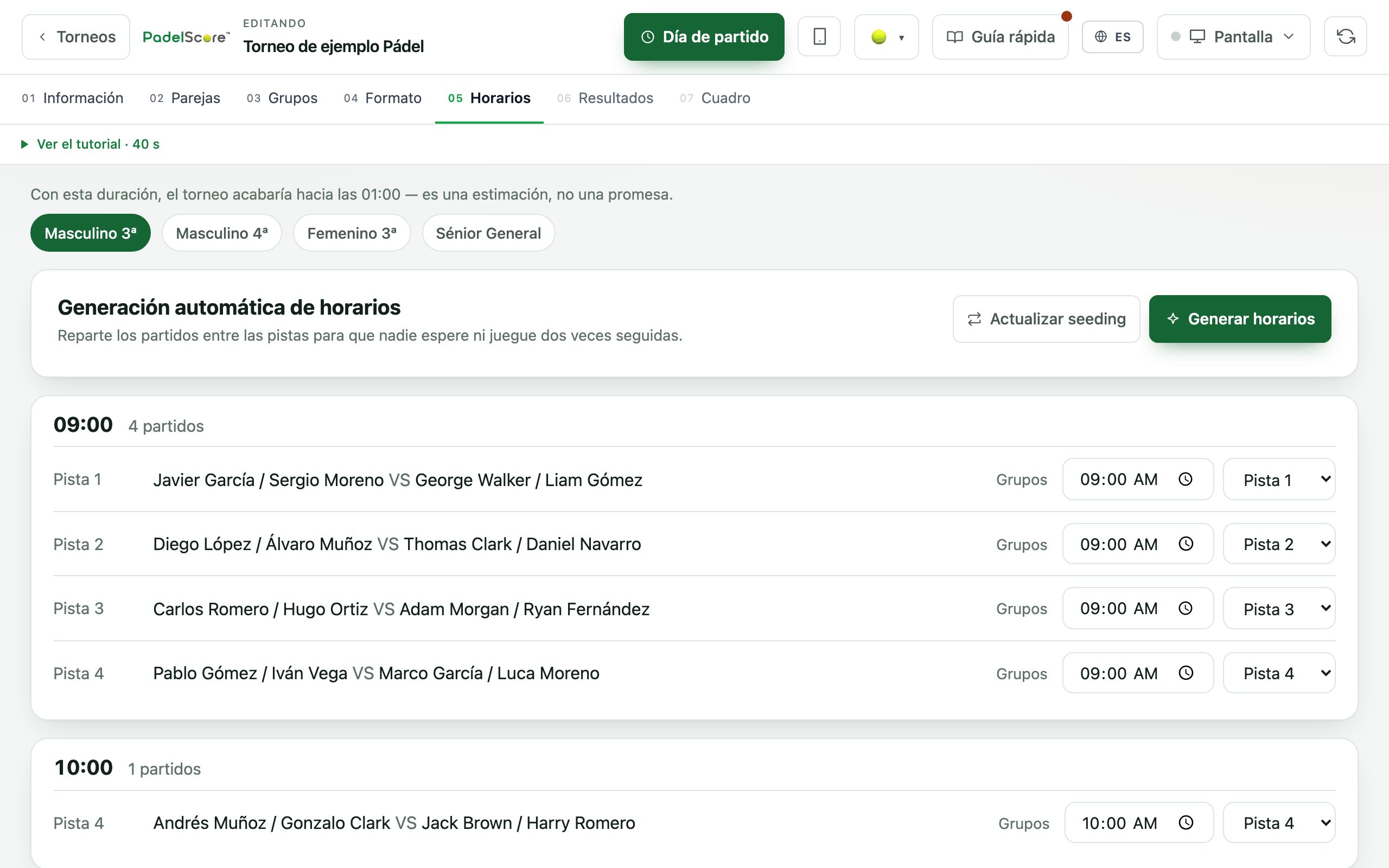
Press “Generate schedule” and you get a time and a court for every match, across every category, spread over the courts you have. It spreads them so the same pair does not play twice in a row and no court sits idle.
You can change the time or court of any match by hand. If two matches then clash on the same court and time, a yellow warning tells you exactly which ones: it does not stop you — sometimes you know what you are doing — but it does not let you find out at nine on Saturday morning either.
This is also where you get the per-court screen links, one for each court, in case you would rather put a tablet on every court than a TV in the clubhouse. Each link shows the match being played there and switches by itself when the next one starts.
06Results: on the day
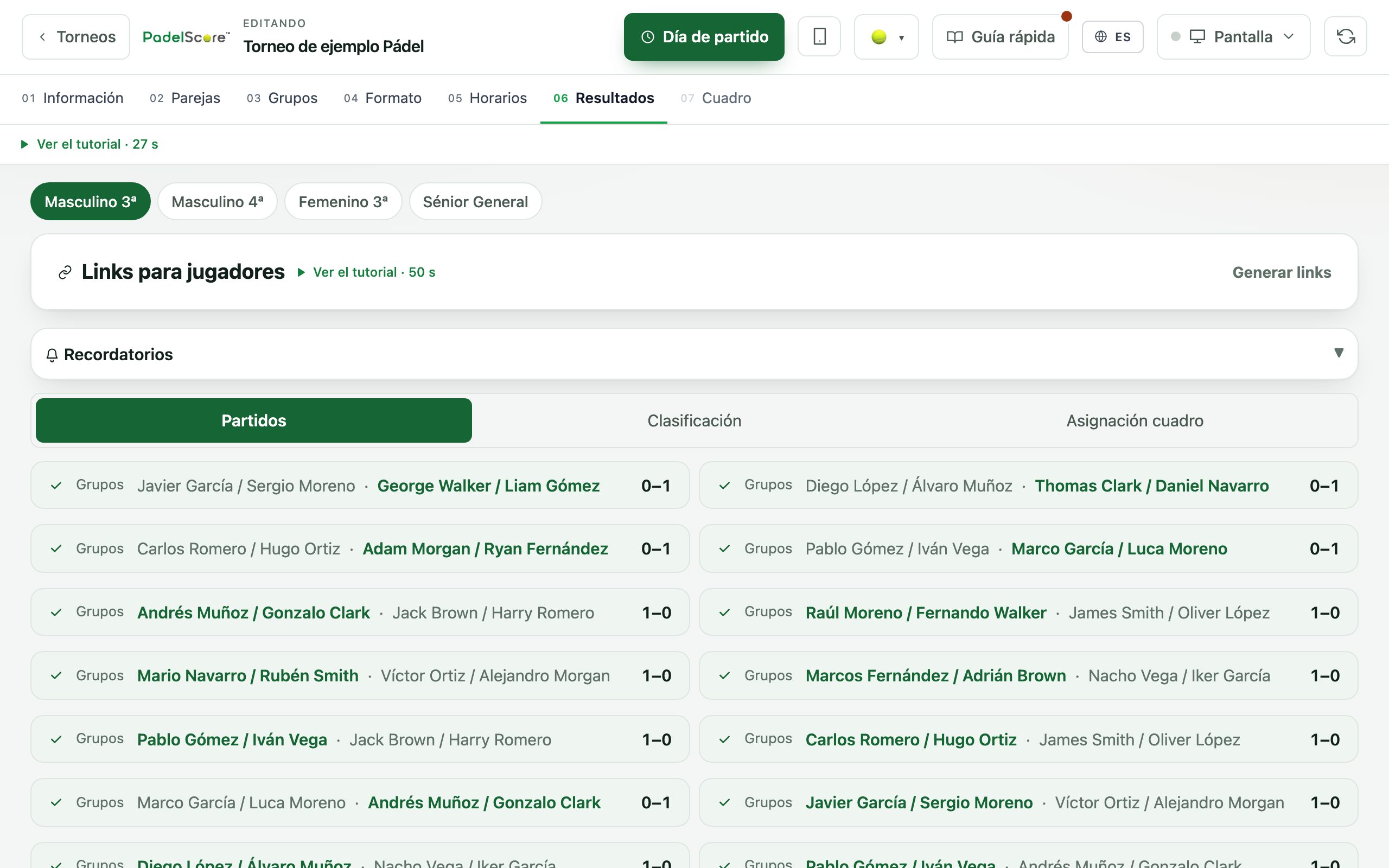
Results can be entered two ways, and both work side by side: you from your phone as the day goes, or the players themselves from their link. When a player enters one, their opponent confirms it; until they agree, the result does not count and shows as pending on your side.
This is where each pair’s QR code and link live. You can print the QR codes and pin them to the board, or send the link over WhatsApp from the panel itself: there are ready-written message templates — schedules, reminder, court change — and you just pick who gets them.
In padel, tennis and pickleball you can score point by point if you want the scoreboard live on screen, with the game and set updating on every point. If you get it wrong, an undo button removes the last point. In football and roller hockey you log goals and cards with the minute and the player, which is how it works pitch-side, and the whole match report can be corrected before you close it.
Standings, tie-breaks and the bracket recalculate themselves as results come in. There is no button to press, and the bracket advances on its own: when a semi-final ends, the winner is already in the final.
Players can also dictate the score instead of typing it: using the phone keyboard's microphone they say “two one and we are done” and the boxes fill in by themselves. Nothing is sent until they check it, and the usual boxes are still there.
On the day
07The screens
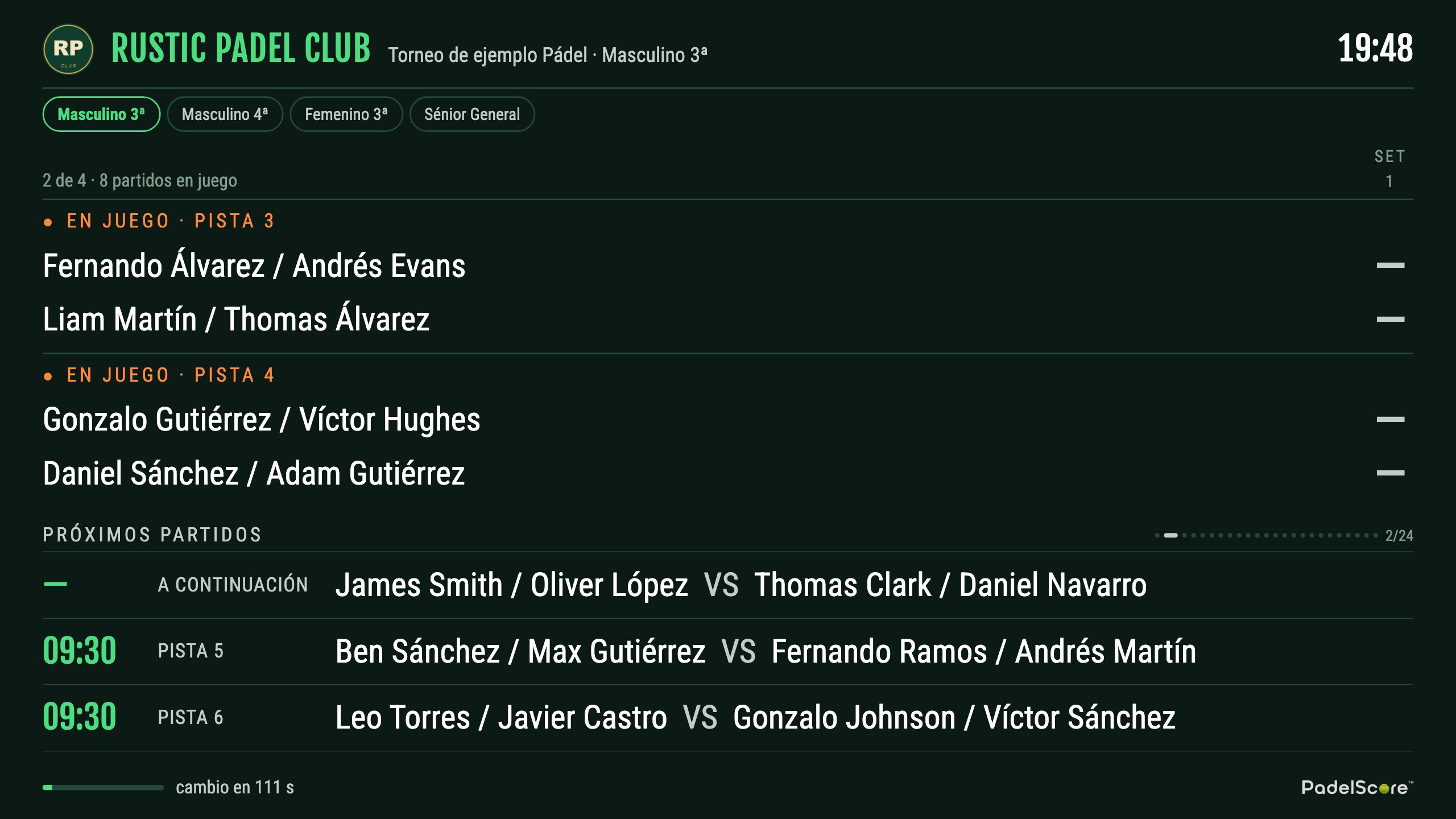
The club has its own screen address. In Club, open “The club screen”: you put its address on the TV just once, and from there you choose what it shows (a tournament, a combined Display or, on days without a tournament, the logo and sponsors). To put on one particular tournament, you can also do it from its card, under “Screen”. The TV changes by itself. It rotates on its own between standings, bracket and upcoming matches, and between categories if you have several, with nobody touching anything all day. Your sponsors’ advertising appears between sections, and videos play full screen. How to connect the TV, step by step: clubscore.live/en/guia/pantalla
No cable from your computer is needed: the screen opens on the TV itself, so you can close your laptop and walk away. If the TV is old, any twenty-euro Fire TV Stick or Chromecast turns it into a scoreboard. A “Send to a TV” button: the TV shows a short code that you type into the panel, so you never have to type an address on the TV itself.
Besides the main Display there are two more screens. One for a single match, to put the final up in large. And the per-court one, which shows what is being played on that court and switches by itself: that is the one you use if you put a tablet on each court instead of a TV in the clubhouse.
And a fourth, for clubs with several sports: the combined Display, which puts two or more tournaments — even across different sports — on one screen that rotates between them full screen. You open it in “Combined display”, also in Club.
You can keep more than one saved at a time, named as you like — «Combination 1 · Bar» — and send each to a different screen: the padel tournaments in the bar and the pickleball ones at reception.
Players, for their part, have their own public view on their phone: schedule, standings, bracket and live results, with nothing to install and no account. It is what they forward to the WhatsApp group.
Competitions between clubs
Everything above is played by people already at your club. A competition between clubs is a different animal: eight or ten clubs, months of fixtures and half the matchdays away from home. ClubScore covers it in padel, pickleball, tennis, football and rink hockey, and the point is that the work of keeping it up to date does not fall entirely on you.
In step 1, when you create the category, you choose who competes: individual pairs — as always — or club teams. If you choose teams, you also decide whether it is played by matchdays, which is the season league, or as a knockout, which is the weekend competition between clubs. In tennis and pickleball the format is called “Interclub league” in the competition format dropdown; careful, it is not the same as “Round robin”, which is individual pairs.
For each tie you decide how many matches settle it — three pairs from each club, four, whatever you use — and how it scores: per pair won, per tie won, per draw and per individual player win. No figure is imposed, because every league has its own rulebook.
In step 2 you add one team per club and, right underneath, you get the invitation pack: one link per club, valid for the whole competition, with a message already written to forward to the captain. You can copy them all at once. ClubScore sends nothing to anyone: the material is prepared here and you send it yourself, from your own WhatsApp or email.
The fixture list generates itself in step 4, home and away if you tick it, and results are kept per tie in step 6. Two standings come out of that with no further work: the team table and each player’s individual record, which is the one people look at first.
What the guest club can do
Whoever opens the link sees the competition from their club’s side: their fixtures highlighted, their row marked in the table and their own players’ numbers. No sign-up and no payment for that, and it is what the captain forwards to their club’s group.
If the captain signs in with their account, three more things open up, all free. Keeping THEIR club’s player list, if you open that door — it is closed by default, because a tournament run by a single club should never expose that. Filling in the sheet for their own tie, except in rink hockey, where the sheet comes from the referee at the table. And proposing a day and a court. In rink hockey their team page also tells them who cannot play in the next matchday through accumulated blue cards.
The sheet has double validation: one club writes it and the rival confirms it or flags that it does not add up. In rink hockey the path is shorter, because the sheet already comes off the table live — penalty shootout included — and the rival only has to confirm the result or dispute it. In racket sports, the winner of each match is not chosen by whoever writes it: the system works it out from the sets. And none of this touches your calendar: neither the sheet nor the agreed date moves anything on its own, they wait and you apply them with one click. The exception is paid for: if the guest club is on the Club plan, its "works for us" on a date applies it to the calendar straight away; you see it flagged and can change it. The final word is always yours.
The other thing that is paid for — in padel, pickleball, tennis and football — is putting the competition on THEIR screen under THEIR brand: the same Display, but headed by their club, with their logo, their colour theme and their languages. Watching it is free and they already have it on their phones; watching it with their own name on the wall of their bar is not. The advertising stays yours, because you sold this league’s sponsorships.
Who else can get in
On the Club plan you can give panel access to more people at the club — in Club, under “Team” — at two levels: administrator, who can change anything, and results-only, who can enter results but not alter the tournament. This is the usual setup when whoever builds the tournament is not the person courtside on Saturday.
There are no passwords to remember or hand out: you sign in with Google or with a link sent to your email that expires by itself.
When it is over
When it ends you get the tournament report as a PDF (Club plan), with standings, brackets and results by category, ready to send to the group, pin on the board or file away. You can export the whole tournament or a single category. In football and roller hockey it also includes the top scorers table and suspensions from accumulated cards, worked out automatically.
The PDF and MD buttons are on the tournament card, in the manager. If the tournament has more than one category, a dropdown appears next to them with “All categories” and each category name: that is the report filter, and there you decide whether you want one document with everything or just one category. If the tournament has a single category the dropdown does not appear, because there is nothing to choose.
You do not have to wait for the tournament to end to pull the report: reading is never blocked. While the tournament is still under way the buttons show in amber and the document is marked as provisional; once you finish it, they turn grey and the report is the final one.
There is a second format too, MD, which is the same report as plain text. The PDF is for people; the MD is for machines: hand it straight to ChatGPT, to Claude or to a spreadsheet and ask whatever you like. Keep the MD from every tournament and after a season you have the club’s history in a format any AI reads effortlessly — who has improved, which courts get used least, when withdrawals cluster.
Mark the tournament as finished and it stops taking up a slot: the Display switches off and the players’ view stays available for reference.
And for the next one: duplicate the tournament. Everything is copied — categories, format, courts, entrants — into a new draft tournament, and you only change the date and the handful of people who have changed. For a club running a tournament every month, that is the difference between half an hour and five minutes.
When a category finishes, the bracket step gives you the club's social post: an image with the champions and the final score, plus the text ready to copy, with the sponsor's name if you want it. You publish it wherever you like; ClubScore posts nothing anywhere.
Every step also has a short video: in Club, under “Help”, inside each sport’s “How it works”. And if something does not fit the way your club runs tournaments, write to us: hola@clubscore.live